

Live transcription
ZeroDesk can transcribe meetings in your virtual office in real time. The transcription is saved as a chat conversation, so you can react to, reply to and bookmark messages as you would in any other chat.
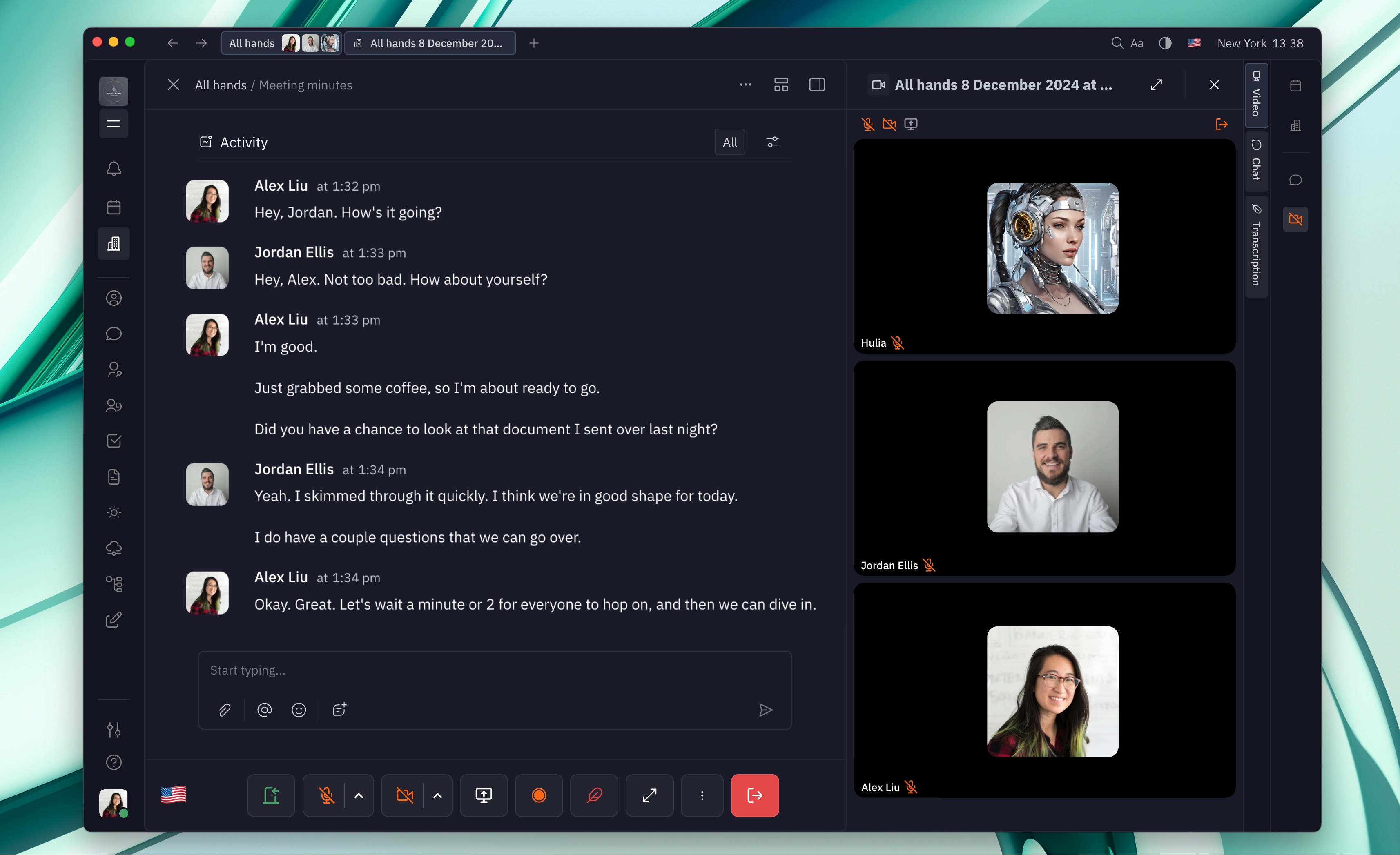
Live transcription
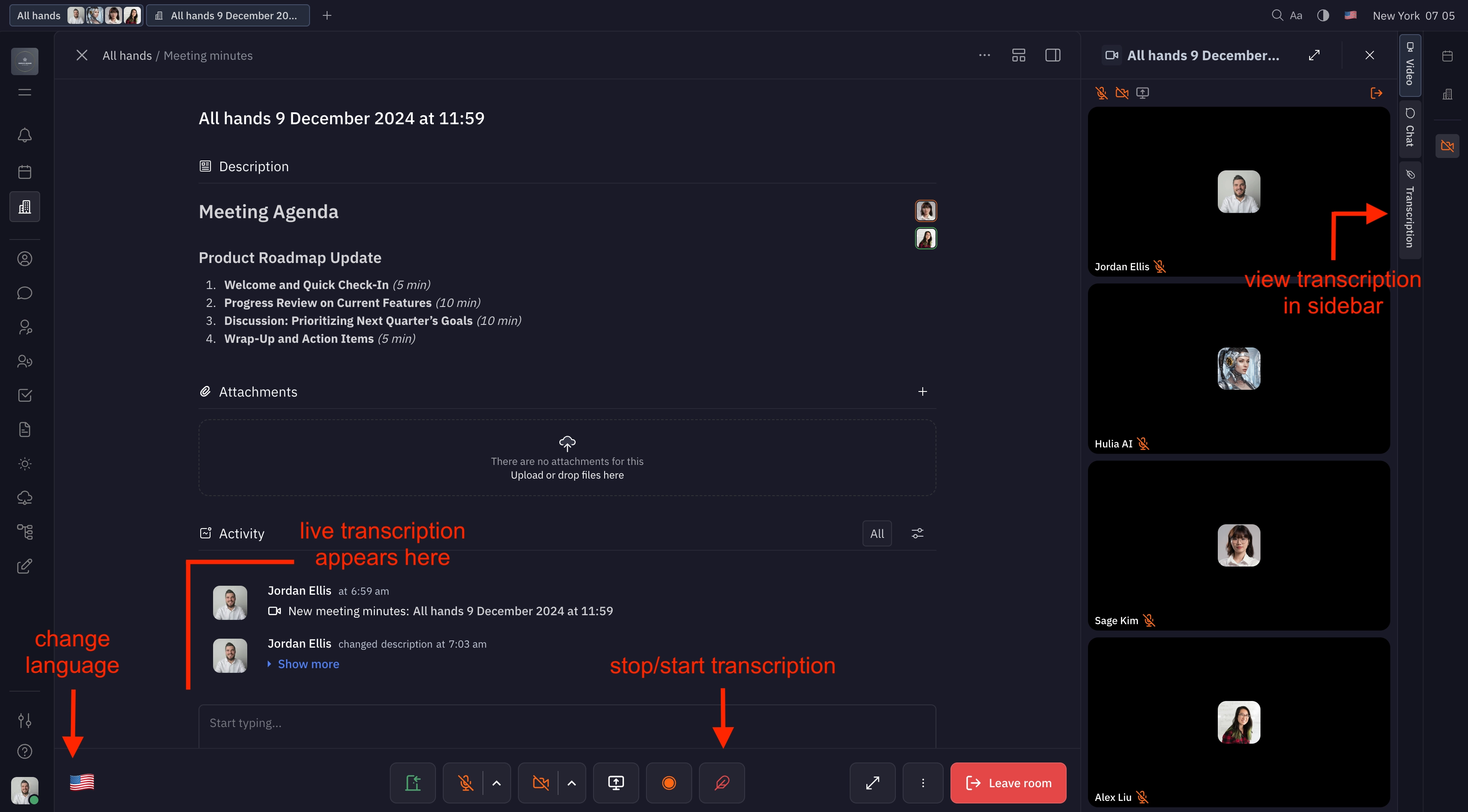
When a meeting begins, you’ll notice that meeting participants appear in the right side panel while the live transcription appears on the main screen in the Activity section. You’ll be able to see your transcription appear in real time during the meeting. Select the language for transcription in the bottom left corner of the meeting menu.
If you navigate away during the meeting to another part of your workspace, you can still access your live transcription by clicking on the video icon in the right side menu and selecting the Transcription tab.
Disabling live transcription
Live transcription can either be disabled by default for the entire meeting room, or can be disabled for a specific meeting during the call.
To disable the default live transcription for a meeting room, open the room and navigate to Settings. Here, you can toggle the default transcription setting on or off.
When transcription is enabled during a meeting, you’ll see the quill icon in the bottom menu of your meeting appears red. To disable transcription for a meeting, click the quill icon at the bottom menu (labeled Stop transcription).
Note: Meetings are also recorded by default, and this can be disabled in the same way as transcription — either in the meeting room settings, or for a specific meeting. To disable recording during a meeting, click the recording icon in the bottom menu (labeled
Stop recording). The icon will appear red if the meeting is being recorded.
Viewing past transcriptions
You can see any previously saved transcriptions by navigating to your virtual office and selecting the Meeting minutes icon in the top left corner. Here, you’ll see a list of all of the transcriptions from your previous meetings. You can also delete transcriptions that you don’t want saved in your workspace.
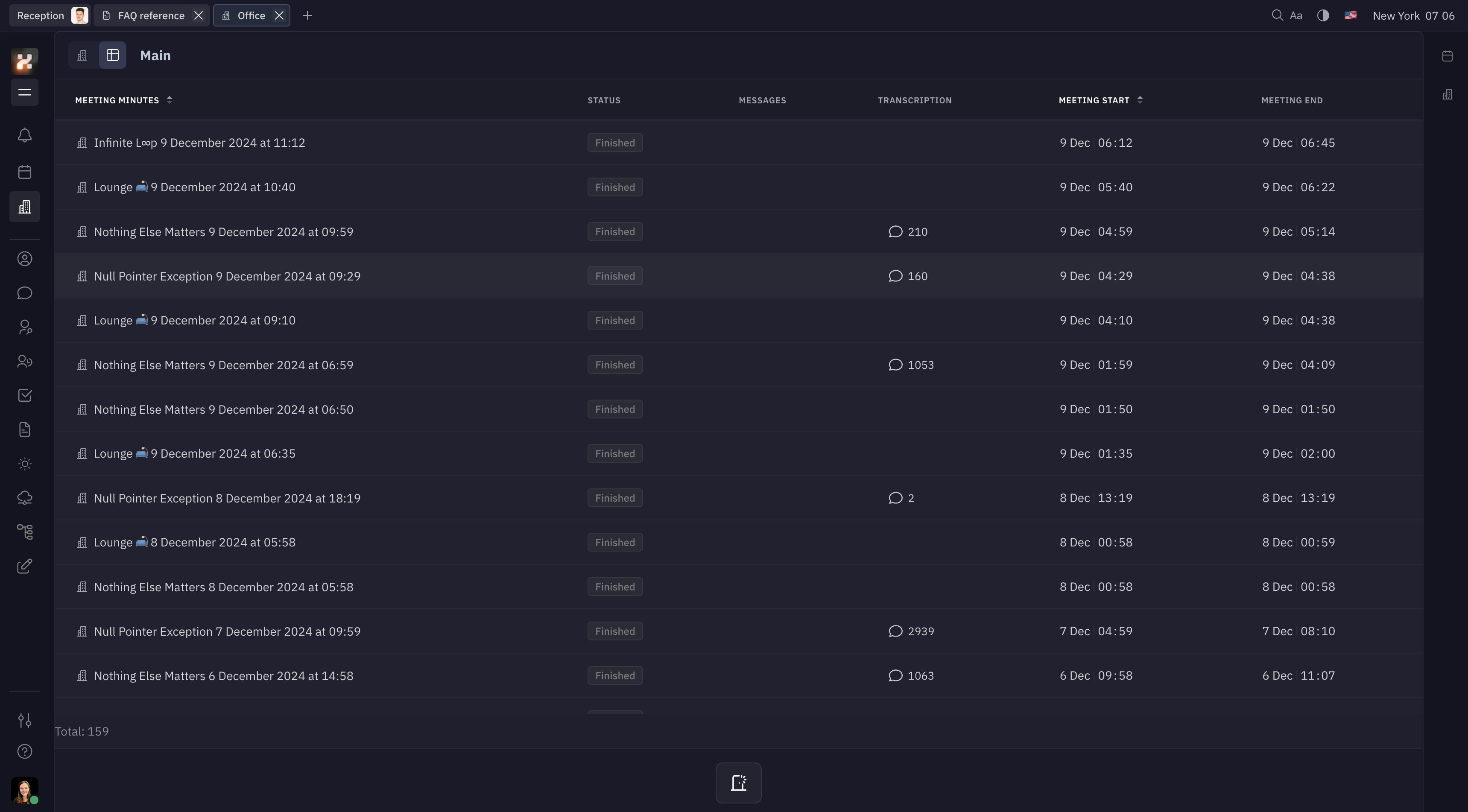
You can also view the transcriptions for a specific room. Click on any meeting room in the office and find the transcription in the Meeting minutes section.
Privacy
Live transcriptions are currently visible to everyone in the workspace. The best way to keep a meeting private is to disable transcription (and recording) at the beginning of the meeting, or for the entire meeting room.
Let the participants of a meeting know before you record or transcribe it. To learn how ZeroDesk processes your data, read our Privacy Policy (Datenschutzerklärung in German). If you have questions, contact us at info@kotova.io or on Telegram.